
The investigative need
A suspicious request may be spoken in one video and displayed as a caption or message in another. Searching titles can miss both. When an investigation spans a large collection, repeatedly watching every clip for the same wording makes it difficult to follow a lead.
I built Framewise to make those words searchable across the collection. An investigator can find relevant speech and on-screen text, identify which videos contain it, and return to the source to understand what is happening.
What Framewise does
Import videos and choose whether to extract spoken audio, on-screen text, or both. Framewise saves the extracted text in a searchable catalog, with video identifiers and timing information that link matches back to their sources.
The two extraction paths cover different places where an investigative lead can appear. An analyst can search them together or focus on just one source.
How an analyst uses it
Imagine you have 300 videos associated with suspected account-recovery scams. Some may contain a fake support agent asking for a verification fee or an account code. Others may be warnings, reports, or unrelated discussions. You need to find the relevant wording before deciding which videos deserve closer review.
Extract the speech and on-screen text into Framewise, then search the saved collection for the phrases you are investigating. A match tells you which video to open and gives you a starting point within it. You watch the surrounding context to understand whether the request is being made, quoted, or challenged.
- Step 01
Import the videos and choose what to extract
Submit the collection in batches of up to 100 videos. Select spoken audio, on-screen text, or both, and review the extraction settings. For a payment-request investigation, using both sources helps you find wording whether it is spoken or displayed.
 View screenshot
Configure speech and OCR extraction. This setup shows a one-second OCR interval; the completed run used four seconds.
- Step 02
Build the searchable catalog
Start the queue and follow extraction as videos are processed one at a time. Completed speech windows and OCR observations are saved. Open a finished video to review its full text or timestamped results, and resume unfinished work from the saved checkpoints when needed.
 View screenshot
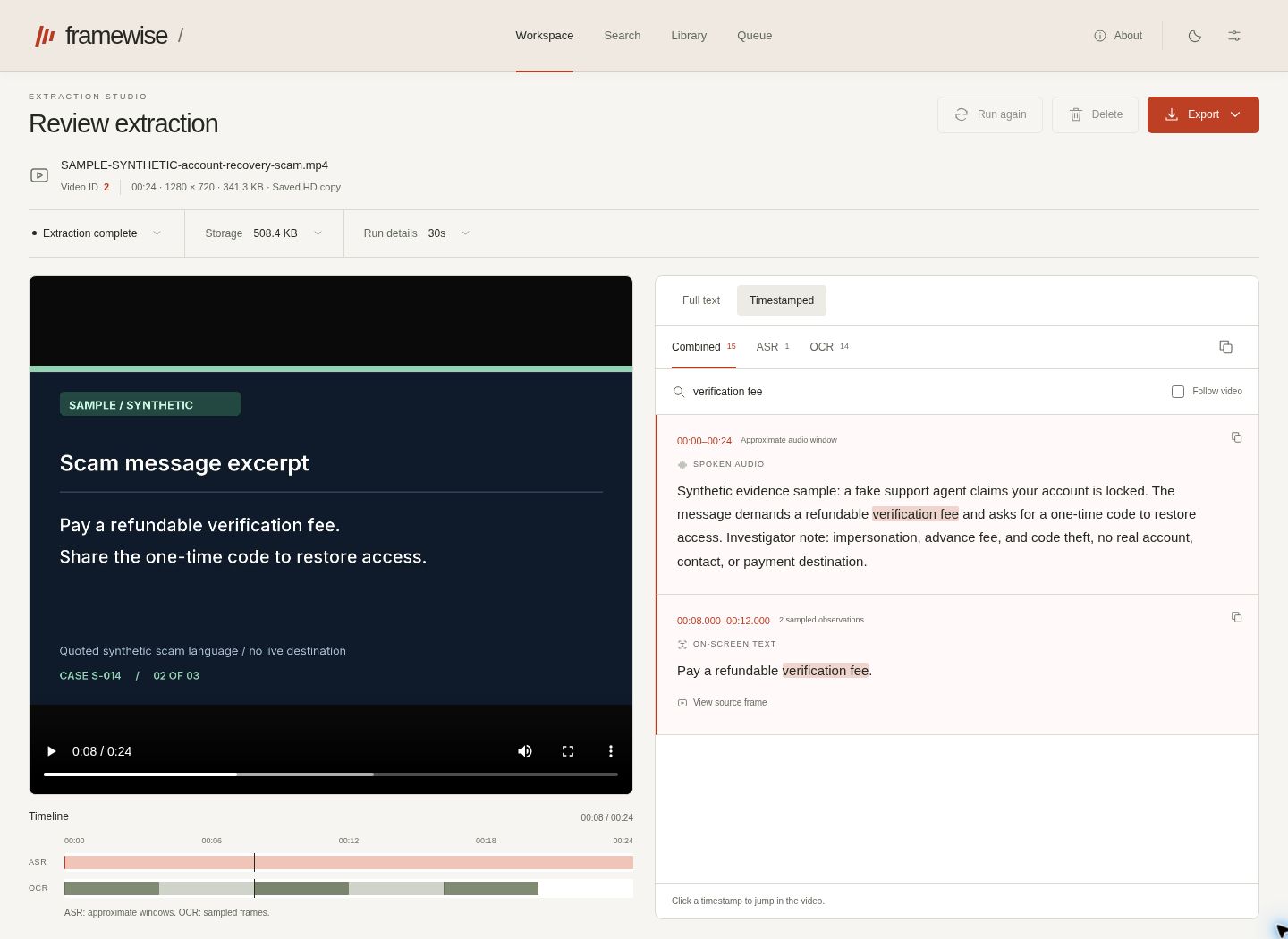
Review the speech transcript and sampled on-screen text beside the video and timeline.
- Step 03
Search for the wording you are investigating
Enter a keyword or phrase and choose whether to search both sources, spoken audio, or on-screen text. In the recorded example, “refundable verification fee” finds one video with a speech match and an OCR match. Search reads the saved text, so repeating a search does not repeat extraction.
 View screenshot
Search the saved text and open the fee-request match at 00:08, alongside its sampled observations.
- Step 04
Review the source and carry the findings forward
Open a match and inspect the surrounding video. The sampled frame at 00:08 shows “Pay a refundable verification fee,” while the speech result opens its approximate audio window. Decide what the wording means in context, then export matching videos and their text to Excel for further review or handoff.
Read and refine the search results
One video can contain the same phrase in more than one source. The recorded example below shows what a speech match and an on-screen match each establish, and where they take the reviewer.
One phrase, two paths back to the video
Search phrase: “refundable verification fee”
Spoken audio
00:00–00:24 · Approximate speech window
The message demands a refundable verification fee and asks for a one-time code to restore access.
Open this audio window and listen for the phrase in context. Its timestamp identifies the window, rather than the precise moment each word was spoken.
On-screen text
00:08 and 00:12 · Sampled observations
Pay a refundable verification fee.
Open the sampled frame to see the visible wording. These two observations show that it was read at those times; the gap between them remains unsampled.
Recorded combined extraction · 24-second synthetic clip · 2 Oct 2026. The sample’s investigative labels were supplied by its author.
- Match all / any
- Match all requires every included term somewhere in the same video’s selected text sources. Match any finds videos containing at least one. A multi-word term stays together as a literal phrase.
- Source and filters
- Search both sources, spoken audio, or on-screen text. Narrow the collection by batch or date added when you want to focus on a particular group of videos.
- Exclusions
- Excluded terms remove a video when they occur in either its ASR or OCR text, even if the inclusion search uses only one source. Choose exclusions carefully so you do not discard useful context.
- Follow the matches
- Previous and Next match move through occurrences in the selected video. A phrase spanning transcript entries opens Full text when there is no reliable single timestamp to show.
What the extracted text tells you
The catalog helps you locate wording and prioritize videos for review. Interpretation comes from the source context: a video discussing a fee request can be a solicitation, a warning, or a report. ASR and OCR readings should also be checked against the audio and visible text when an important detail depends on them.
- Speech timing
- ASR times describe approximate audio windows. Use them to reach the relevant part of a video, then listen for the exact wording and its context.
- OCR sampling
- OCR reads selected frames, so brief text can fall between samples. Repeated readings can be grouped for display; the recorded times remain observations of sampled frames.
- Source previews
- The app recreates source frames from a retained compressed HD copy. Small details can differ from the original upload, so account for that when reviewing the preview.
- Saved text and exports
- Saved model text stays tied to its video. Excel can carry full ASR/OCR text and identifiers into a team’s workbook; JSON and TXT preserve model formatting, with raw observations and diagnostics available in JSON. Search exports include all matching videos across pages.
How it was built
Explore extraction, checkpoints, search, and exports
Separate speech transcription and local OCR
Speech transcription sends audio windows to OpenAI. PaddleOCR-VL-1.6 runs locally, using periodic and visual-change sampling to choose frames. PyAV provides frame presentation timestamps; MLX supports the local OCR runtime on Apple Silicon.
Resume from saved work
A persistent coordinator processes queued videos sequentially. Saved speech windows and OCR observations support recovery of unfinished work, and a failed video does not block the rest of the queue. Successive submissions of up to 100 videos build larger collections without implying that a single batch accepts more.
Search without new model inference
A SQLite FTS5 catalog supports collection search alongside literal matching of saved text. Matching ignores letter case and repeated whitespace, while preserving the stored text. Permanent video IDs provide direct lookup, and batch/date filters narrow the collection. Search and Library exports include the full matching or filtered set across pages.
Retain the distinction between observations and display
The stored model responses are retained without translation, summarization, or correction by the application. OCR grouping and display formatting do not establish recognition accuracy or continuous visibility. JSON keeps raw observations and diagnostics; ASR SRT/VTT exports use approximate timing. Source frames are reconstructed from the retained lossy HD copy.
What the recorded run establishes
One approved combined run extracted speech and on-screen text from a 24-second synthetic clip. The executed settings used a 30-second audio window and a four-second OCR interval; the setup screenshot shows the earlier one-second default. Saved output, search results, source links, and exports were checked. This demonstrates the workflow on that clip, rather than general accuracy or throughput across a 300-video collection.
Built with
Python · Flask · Waitress · PyAV · FFmpeg · OpenAI speech transcription · PaddleOCR-VL-1.6 · MLX · SQLite FTS5 · JSON checkpoints
